
From purchase to your first capture
Ad-hoc signed; not Apple notarized. macOS may require per-app Open Anyway approval. Automatic updates are not configured in this initial download. Read the installation guide before buying.
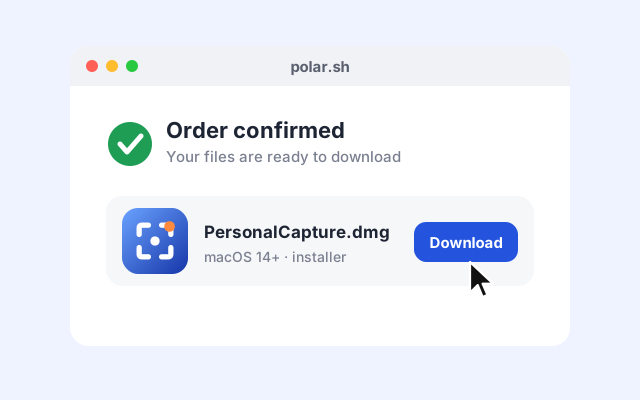
Buy & download
After payment, use Polar’s confirmation page or customer portal with the email used for your purchase. Download the PersonalCapture DMG from your granted files.
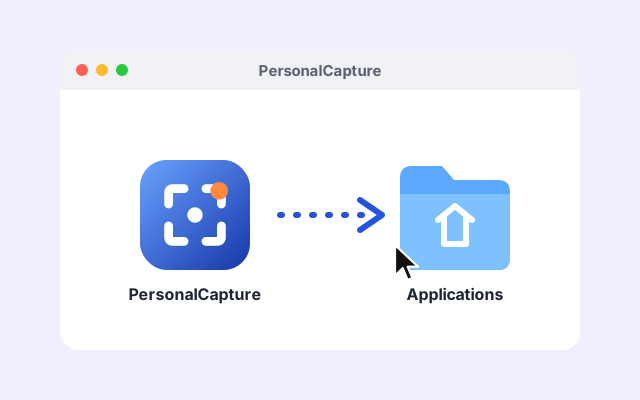
Drag to Applications
Open the DMG, drag PersonalCapture into Applications, then eject the disk image. Launch the Applications copy.
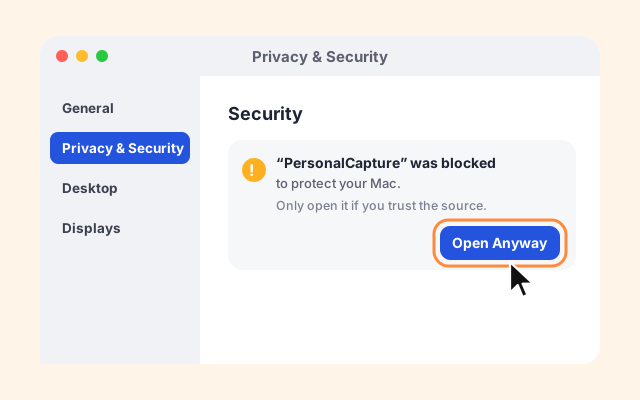
Open Anyway if blocked
If macOS blocks launch, read Apple’s linked instructions. Only if you trust the source, follow the per-app Open Anyway flow in Privacy & Security. Do not disable system protections.
Apple · macOS ↗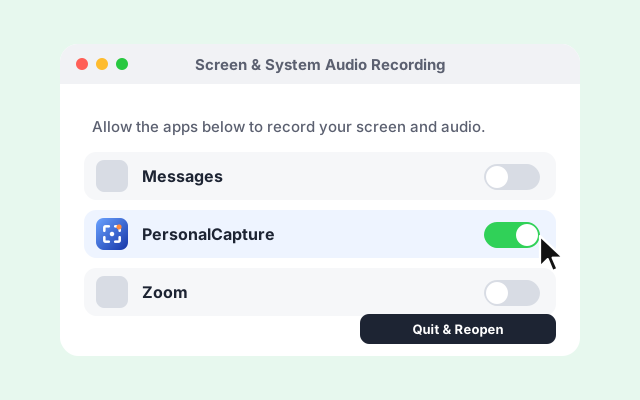
Allow Screen Recording
Start Selected area. Allow Screen & System Audio Recording in System Settings → Privacy & Security, then quit and reopen if requested. Camera, microphone and Accessibility are separate optional permissions.
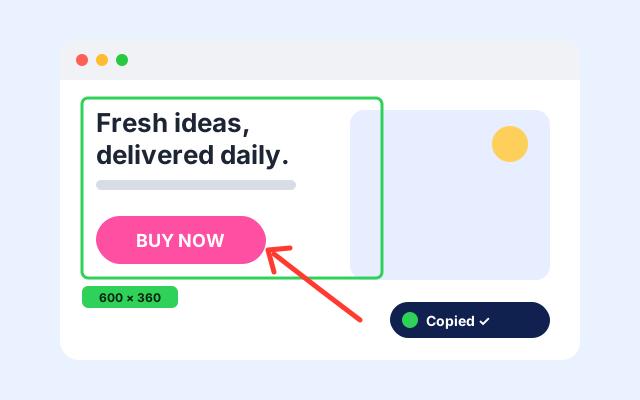
Your first capture
Try a small capture, add an arrow, copy and paste the image, then export and reopen a PNG. Make a short recording and check pause, resume, save and playback. If a step fails, contact support with your app/macOS versions and the error.